If you feel like your Facebook account has been hacked or is compromised, it is time to change your Facebook password. On the other hand, if you have forgotten your password, you will need to reset it. This can be a delicate process because with one wrong move, your account may be suspended or permanently closed. That is why you need to understand how to change or reset your Facebook password. In this article, we guide you on how to do that.
Change or Reset: Which One Do You Need?
Facebook offers two options for updating your password: either changing it or resetting it. So, what is the difference, and which one should you use? The answer depends on what you are trying to achieve. If you already know your current password but would like to start using it, you should use the option of changing the password. If you have forgotten your password, you will need to reset it to be able to use your account again. You need to reset your password when you have forgotten it. On the other hand, you can change your password when:
- Encounter suspicious activity. If you find suspicious login attempts from devices you are not familiar with, or from an unknown location, you might need to change your password.
- Security breaches. If your Facebook password or email address was in a data leakage list, you need to instantly change your password.
- Use of a shared device. Once you log in from a friend's or public computer, this may require you to change your password, especially if you forgot to log out.
Changing Your FB Password When You're Logged In
If you are already logged in, you can change your Facebook password. Here are the steps to follow, when doing depending on the device you are using.
On Desktop
If you want to change your Facebook password on the desktop, here are the steps you need to follow:
- Visit Facebook from your web browser and log in to your account.
- Click on the profile picture or on the drop-down menu located at the far right of the page.
- Select Settings and privacy, followed by Settings.
- On the left-hand side, click on Accounts Center>See More.
- If you have already linked several accounts, select the Facebook account.
- Enter your current password plus the new password. You will need to confirm the new password.
- Click Save Changes or Save Password to complete changing your password.
On iPhone
To change the password on iPhone:
- Start by tapping on the three-dotted line menu at the bottom right corner.
- Tap on Settings and Privacy, followed by Settings.
- From the top, tap on Accounts Center>See More.
- Tap Password & Security.
- Choose Change Password and Select Your Facebook account.
- Add your current password as well as the new one. You will need to confirm the new one.
- Tap on Change Password.
On Android
Just like on desktop and IOS, you can also change your Facebook password on Android using the following steps:
- On your phone, open Facebook.
- Tap on the three lines located at the far right corner.
- Tap Settings and Privacy, followed by Settings.
- Tap on Accounts Center.
- Choose a password & security.
- Tap on Change password and choose your new password two times.
- Tap on update password or change password.
Resetting Your FB Password When You're Locked Out
At times, you might be trying to reset your Facebook password when it is too late, or you have already been logged out. In this case, the steps to follow will be different. These are:
Find your account
- Visit Facebook login or click on the mobile app.
- Tap or click "Forgot password" in the sign-in box.
- Type your phone number or email address.
- Allow Facebook to find your profile by clicking on Search.
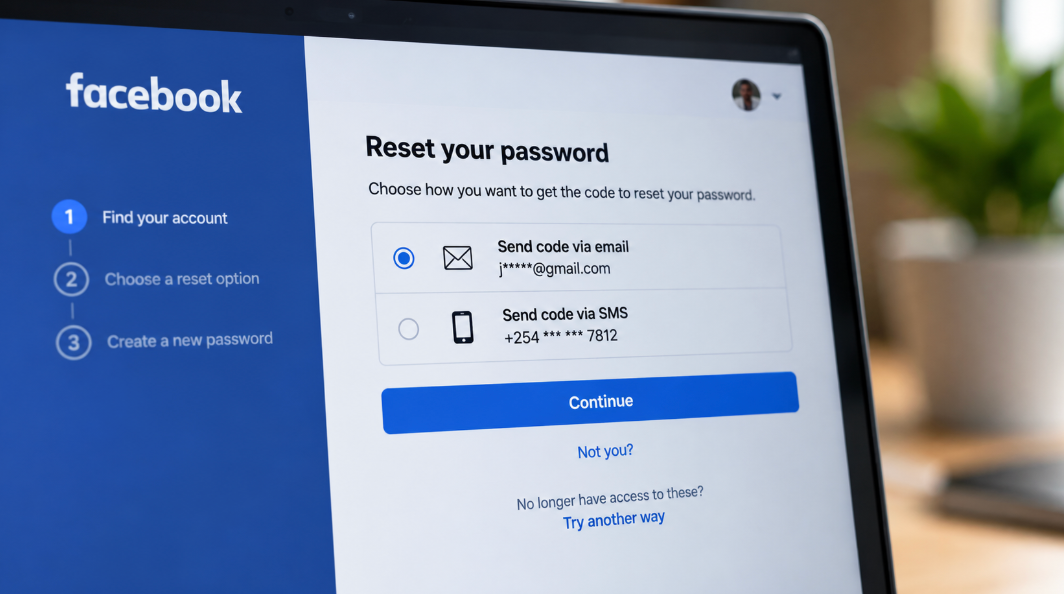
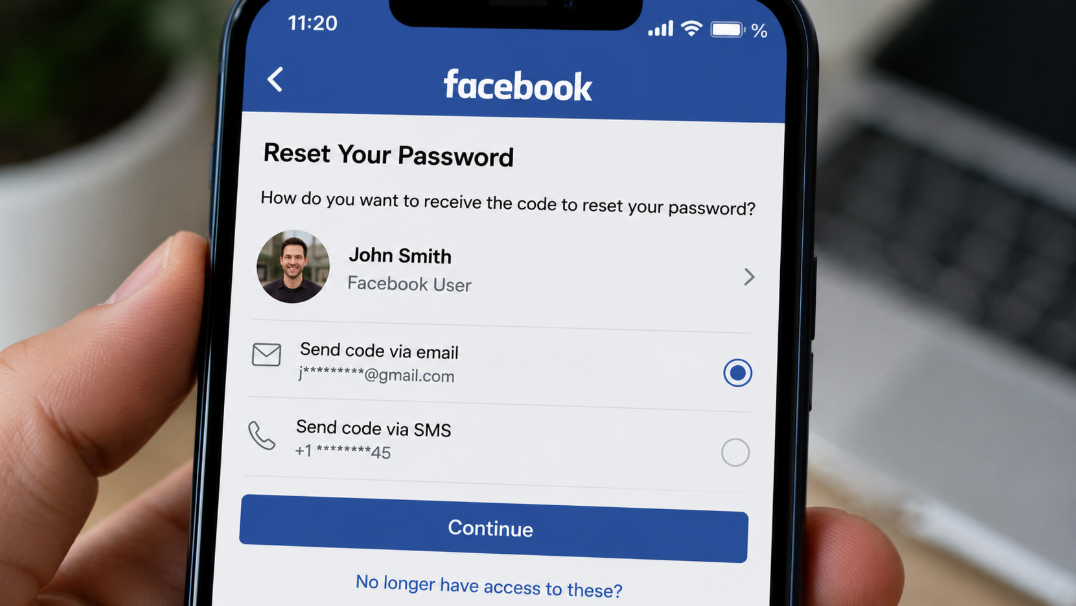
Choose an option to receive the code
Facebook will confirm it's you by sending a code. You will be given a different choice for resetting the code, such as email or SMS. Once you have chosen a method of receiving the code, tap continue. Check your email or phone message, depending on where you choose to receive your code.
Enter the code and change the password
Enter the code sent to the empty box that appears on your screen before tapping continue. Facebook will give you an option to enter a new password, which should be a minimum of 6 characters and combine numbers and letters. Click Next or Continue to finish before logging out.
Why Your Password Reset Isn't Working
At times, you might want to reset your password only to realize that the reset password isn't working. This could be attributed to a number of issues, such as:
- Expired links. If you took too long to enter the code sent it might have expired as the reset tokens have a short lifespan. When that fails, ask for a new link. At times, your email might block your message, marking it as spam. This may cause the link to expire.
- Typing /cache errors. If there are some hidden extensions and old cookies, these can block the submission of new forms. A good idea would be to open in incognito mode, or you can clear the browser cache.
- Account restrictions. If you are rapidly trying to reset your Facebook password, you can be blocked by the system. This might cause the reset to be banned for at least 24 hours.
Frequently Asked Questions
Can you change your Facebook password without knowing the old one?
No. If you don't know your old Facebook password, you can only reset the password, but not change it.
How long does a Facebook password reset link stay valid?
The one-time Facebook reset password will usually last for a few hours. On the other hand, a password reset code tends to last for around 20 minutes
Does changing your password log you out everywhere?
Yes. When you change your Facebook password, you will be logged out on all devices apart from the one you are currently using. This is to prompt you to enter the new password.
Does changing your Facebook password affect Messenger or Instagram?
Yes. When you change your Facebook password, this may affect both Messenger and the Linkedin Instagram accounts. Since Messenger uses the same password as Facebook, you will also need to enter the new password on Messenger. If your Facebook shares the same Meta Account Center on Instagram, changing your password may require re-authentication or updating both passwords
